
Screenshots
Your latest screenshots, always on top.
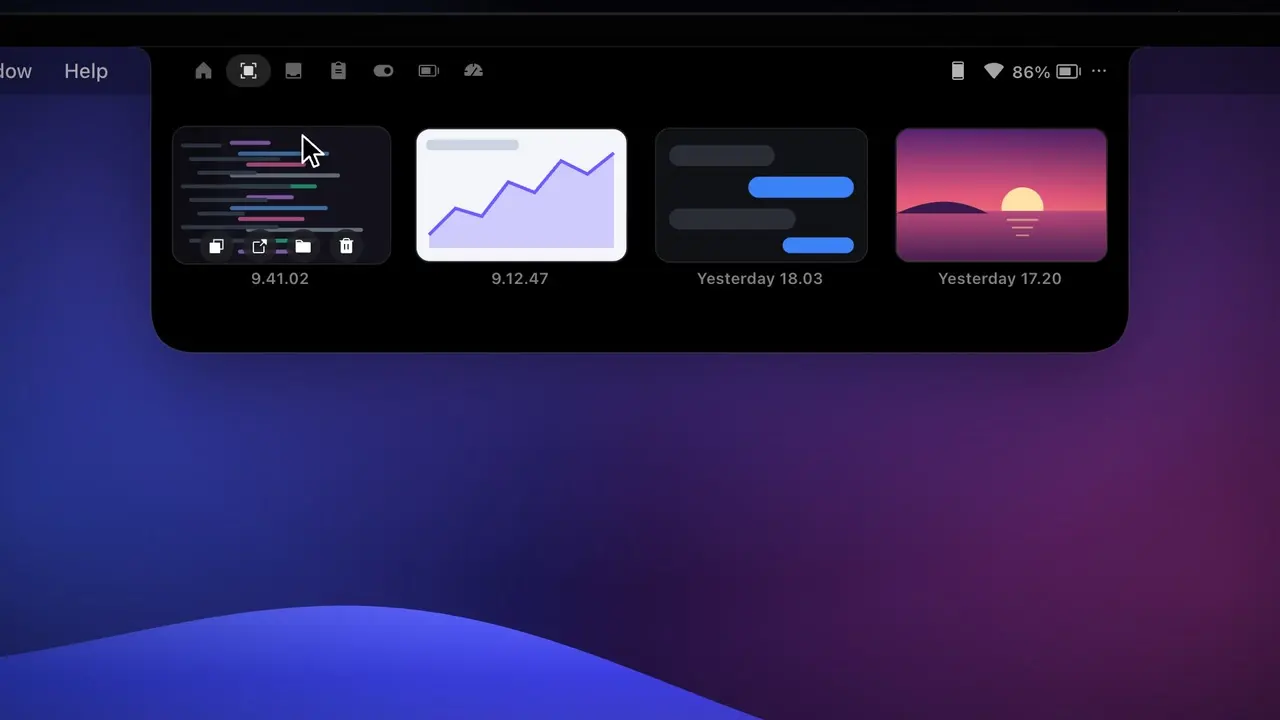
The Screenshots tab shows your newest 30 captures from wherever macOS saves them. Drag one straight into a chat, an email or Finder.
How it works
- 1
Take a screenshot as usual (⇧⌘3, ⇧⌘4 or ⇧⌘5).
- 2
The notch pops with a thumbnail.
- 3
Hover the notch to drag, copy, preview or share it.
The details
Quick Look with Space
Hover a tile and press Space, just like in Finder. The app you were using stays in front.
Hover buttons
Copy, Open, Show in Finder and Move to Trash.
Share via QR
Right-click a screenshot to send it to any phone on your network.
Follows your folder
Reads wherever macOS saves screenshots (⇧⌘5 › Options › Save to).
FAQ
Why does the screenshot pop-up take a few seconds?
macOS waits about 5 seconds while its own floating thumbnail shows. Turn off Show Floating Thumbnail in ⇧⌘5 › Options for an instant pop-up.
Want this in your notch?
Join the wishlist and be the first to know when it launches.